

Copy-Paste Secrets to Boost Your Productivity

“Copy” and “Paste” are two words synonymous with computing. They’re taught in the first class of Basic Computer Efficiency 101, if that were a real thing. And they’re probably the reason the Ctrl, C, and V keys on your keyboard have seen a lot of use. But did you know the traditional copy-paste has some real limitations? Here, we will describe what those shortcomings are and consider some clever ways to get around them.
Note: We’re assuming the Windows OS environment, but in many cases, the Cmd key on macOS acts as a perfect substitute for Ctrl.
Copy-Paste Basics
Copy is Ctrl + C. This takes whatever text you have highlighted on your PC and saves it to your “Clipboard,” a virtual space that saves exactly that text and only that text.
Paste is Ctrl + V. This takes the copied text from your clipboard and outputs it to your cursor location.
With this, you can:
- Share links without typing them out, letter-by-letter
- Move text between documents, e.g., copy text from your web browser into a message to a friend
- Grab an image in the Snipping Tool and paste it into an email
- Quickly duplicate formulas or code snippets
But doing all of this efficiently requires the keyboard. It demands Ctrl + C followed by Ctrl + V. Please, don’t do this with a right-click of your mouse.
The Limitations
Copy-paste has a few crucial limitations, one of which we already hinted at:
- It’s limited to a single item in the clipboard, as in, the last text you copied
- It saves the formatting of the text you copied, then pastes with that formatting
What if you want to paste something you copied three copies ago? Or, what if you want to paste text without formatting (removing links, bold, italics, etc.)? Read on.
Tip #1: Clipboard History and Windows + V
If you get one takeaway from this post, let it be this one: Windows has a feature called “Clipboard history” that enables you to look back, and paste from, your clipboard up to 25 copies ago. That could mean hours and hours of copied data ready to paste again from a very basic keyboard shortcut. The catch, if there is one, is that you have to enable this setting as it’s not on by default.
The shortcut: Windows Key + V

Pressing this shortcut functions a lot like a paste, except it pops a window revealing your last copies. This window can be scrolled and interacted with. When an entry is clicked, it pastes. Simple enough.
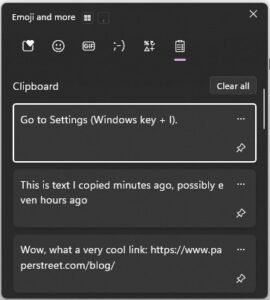
This eliminates the frustrating “copy-paste-switch-paste” cycle, making multitasking smoother. Think about the possibilities: copying several key points from different emails and then pasting them all into a summary document. Know that this feature can preserve all kinds of information, not just basic text. Entire images can also be saved and recalled from your clipboard in this manner.
Enabling Clipboard History in Windows
The fastest way to find this setting may be to open Windows Settings with Windows key + I and then search for “Clipboard history.” If that does not work, try the following:
- Go to Settings (Windows key + I).
- Click on System.
- In the left sidebar, click on Clipboard.
- Under “Clipboard history,” toggle the switch to On.
Tip #2: Paste Without Formatting and Ctrl + Shift + V
By default in Windows, a paste from your clipboard brings along formatting. Undesired formatting taken from a document or webpage will come along for the ride that you may then want to clean up—say, to fit into the rest of your email’s formatting. Well, with a simple shortcut, you can execute a paste that leaves all the formatting out.
The shortcut: Ctrl + Shift + V
This useful shortcut performs a “paste without formatting.” Instead of bringing along the original text’s style baggage, it pastes the content using the formatting of your destination document.
For example, let’s say you copy this link from a webpage:
Wow, what a very cool link: https://www.paperstreet.com/blog/
Pasting it normally with Ctrl + V would likely include italics and possibly a blue color and link underline. But using Ctrl + Shift + V would paste only the plain text, which will then take on the formatting of wherever you’re pasting it. No more wrestling with runaway formatting; you’ll get clean, consistent text.
You’ve Leveled Up Your Copy-Paste
Keep these two shortcuts in mind every day at your computer. Maybe stick a sticky note on your screen reminding you that they exist. In time, you may find that one – or both! – become an indispensable part of your productive day.
We love technology at PaperStreet and can assist with all your legal website needs. If you like what you read here or elsewhere on our blog, consider reaching out for one of our diverse website marketing, design, and development services.

Join our newsletter, where you will learn educational info on latest insights, tips and best practices.
Share:
About Us
Did you know more than 200 clients have worked with PaperStreet for more than 10 years?
Get a Free Website
Analysis and Consultation
Marketing Services