
WordPress Post Statuses: How To Utilize The Different Options
WordPress offers various different ways to manage and control how and when content is viewed through its range of post status types, each of which serve a unique purpose when publishing new content. The most common status types include but are not limited to the following:
- Draft
- Scheduled
- Published
- Private
- Password Protected
Throughout the article we will go back and forth between verbiage, using “posts” and “pages” interchangeably. Posts are typically blog posts in the Posts custom post type and Pages can be found in the Pages post type. These two post types are default post types in WordPress. We discuss different post types and custom post types in depth if you would like to learn more about them.
Drafts
Drafts are posts that are not quite ready to be published. These types of posts are not visible on your website to the normal user, but drafted posts can be previewed by you or any user on the website who is logged into WordPress. Feel free to make adjustments on your own timeframe, the post can be published whenever the content is ready.
A new post can be saved as a draft instead of publishing right away. Published posts can also be reverted to a draft if needed. This can be useful if you want the post or page to be hidden while edits are being made. Please note that published posts that are switched to draft will no longer appear on the website for users to view. If the page is accessible via the main navigation or other means, the page will 404 if visited while marked as a draft.
The draft status is also often used to hide pages. For example, we have a post on the blog and want to make changes to it, but we don’t want to lose our original content. The post can be duplicated and we can draft the original one while making changes on the new page. Ensure that if we want to use the new copy as the new blog post, note changes to the hierarchy, or the page, does the original page have children pages, or is this page a child of another page. If you need help, please contact your web design team for help in these more complicated situations.
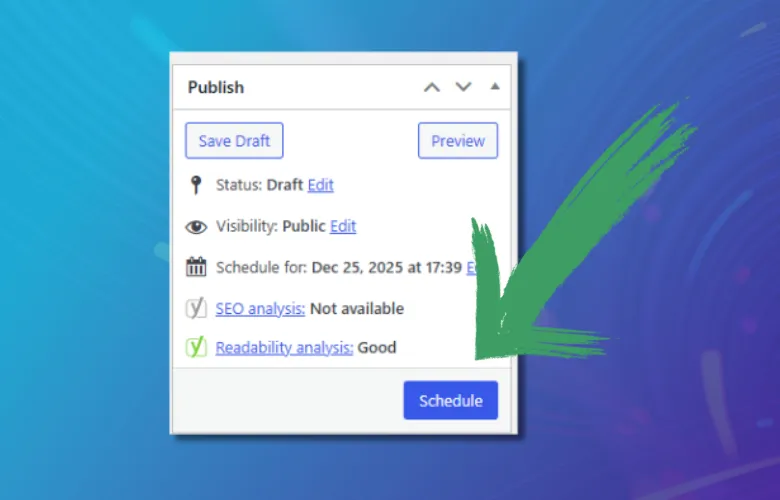
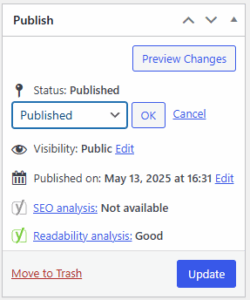
In order to update a page from published to draft, please see the sidebar on the right side of the post you are currently editing and hit “edit” near the Status of the post. A dropdown will appear with draft as an option.
Scheduled
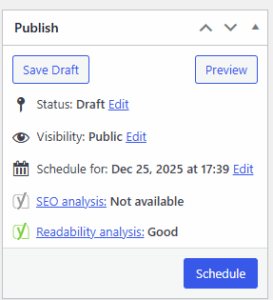
Posts marked as Scheduled are not published immediately, similar to drafts, but are set to be automatically published on a specific date and time in the future. This feature allows us to prep content in advance and ensure that it is visible to users when you decide. Once a post is scheduled out your job is complete. WordPress will handle everything from here.
Any new post or existing post can be adjusted to be scheduled. This is often used for new posts and much less common for already published posts, but know it can be done.
Assuming we are scheduling a new post, to do this, in the same sidebar area where we changed the post status in the draft section. We have a “Publish(ed)” line. We want to edit this and select the date and time when this post should go live. Hit Ok and the blue button should swap and say “Schedule”.
Published
We should all be familiar with published posts. All pages on the website are considered published because users can view them all from the front end. New posts can be published, drafted posts can be set to published, and we can even update the date on scheduled posts to publish the page immediately.
Private
Private posts in WordPress are strictly visible to users who are currently logged into WordPress. These types of posts are useful for sharing content within the team while hiding it from the public.
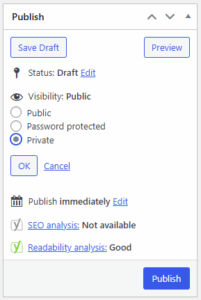
Private posts can be achieved by visiting the sidebar in WordPress and updating the “Visibility” setting and either Updating or Publishing the post.
Password Protected
Password protected posts are only accessible to individuals who have the correct password. This setting allows you to keep content private to a specific group of people. While hiding it from the general public.
Password protected posts, similar to private pages, can be set by updating the “Visibility” setting in the sidebar when editing a post. Enter the password for the page and don’t forget to hit update or publish. Sometimes changes will need to be made to the template, so please contact your web design team if you need assistance with setting these types of pages up.
These pages can be utilized in numerous ways, such as:
- Exclusive content for subscribers: Share material that is only available subscribers
- Membership functionality: Offer premium content and resources to paid members.
Understanding WordPress Post Statuses
WordPress provides us with many features for managing our content through its post status types and visibility settings. Utilizing these built in features helps us to effectively deliver and tweak our content to ensure that our information reaches the public at the right time.

Join our newsletter, where you will learn educational info on latest insights, tips and best practices.
Share:
About Us
Did you know more than 200 clients have worked with PaperStreet for more than 10 years?
Get a Free Website
Analysis and Consultation
Marketing Services